Search Explore
Overview
- Android
- iOS
The Explore tab in the Search tool helps you discover popular places around you and quickly return to places you have searched for or navigated to before. It contains two sections: Popular Places Nearby and History.
History is a record of all searches and navigation destinations that you have entered or searched for in the app over the period of use. This tool allows you to easily find and access previously searched locations, which makes navigation easier and saves your time.
OsmAnd provides several ways to view your history.
- The Search button is always displayed on the map, and tapping it will take you to the tool's general screen.
- Go to the main Menu → Search → Explore tab.
- When preparing to start a route, tap Navigation → Set destination → Search field.
- Information block in the navigation menu of route preparation displays a list of recent destination points, which are also part of the search history.
- Search history is available in Android Auto.
Search History is a record of all searches and locations that you have entered or searched for in the app over the period of use. This tool allows you to easily find and access previously searched locations, which makes navigation easier and saves your time.
OsmAnd provides several ways to view your search history.
- The Search button is always displayed on the map, and tapping it will take you to the tool's general screen.
- Go to the main Android Menu → Search → History tab.
- When preparing to start a route, tap Navigation → Set destination → Search field.
- Information block in the navigation menu of route preparation displays a list of recent destination points, which are also part of the search history.
- Search history is available in CarPlay.
How to Use
- Android
- iOS
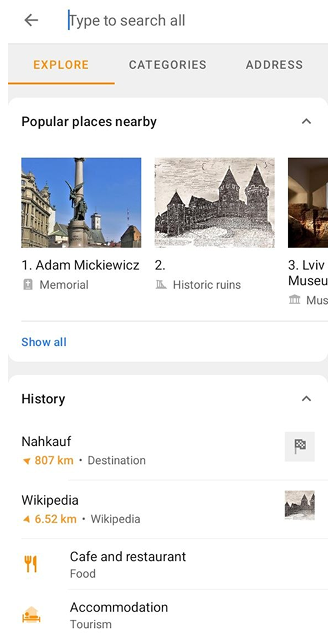
The Explore tab opens when you open the Search tool. The Explore tab serves to provide relevant information about places around you and your previous actions.
- Discover places nearby. The Popular Places Nearby section shows well-known landmarks and attractions around you, so you can find interesting places without entering a query.
- Re-search. You can use the search history to search again for previously searched places or addresses without having to re-enter the query.
- Quick access to frequently visited places. If you visit certain places frequently, such as your home, work, or favorite places, Search History saves those places, providing quick access to them.
- Track previous trips. The search history can be useful for tracking previous trips and routes. You can track routes you have taken before, or plan your next route based on previous ones.
- Search for places over a certain period of time. On the History screen, items sorted by Recent are grouped by period: Today, Yesterday, Last week, and then by month. To find a specific item, tap the History title at the top of the screen and enter its name.
- Delete entries. Search History provides the ability to delete previous entries, which can be useful for confidentiality or to keep your history organized.
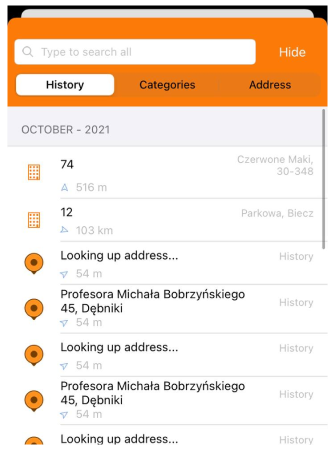
The search history serves to provide relevant information about your previous actions.
- Re-search. You can use the search history to search again for previously searched places or addresses without having to re-enter the query.
- Quick access to frequently visited places. If you visit certain places frequently, such as your home, work, or favorite places, Search History saves those places, providing quick access to them.
- Track previous trips. The search history can be useful for tracking previous trips and routes. You can track routes you have taken before, or plan your next route based on previous ones.
- Search for places over a certain period of time. For the Android app, you need to use a long tap, then find the month in which you made the trip, exit the delete menu and set the name in the search field. For the iOS app, the search history list is already divided into blocks by month.
- Delete entries. Search History provides the ability to delete previous entries, which can be useful for confidentiality or to keep your history organized.
Popular Places Nearby
This feature is currently not available for the iOS version of the OsmAnd app.
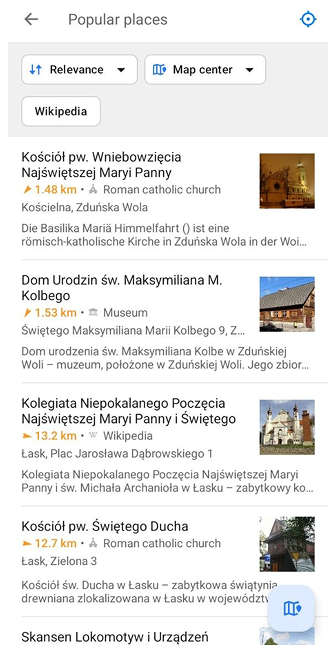
The Popular places nearby section displays a scrollable list of well-known landmarks and attractions near your location. Each item may include the name of the place, its category, distance and direction, and a preview image if available. Tap Show all to open the full list or Show on map to display these places on the map.
For more details, see the Popular Places article.
History Items
- Android
- iOS
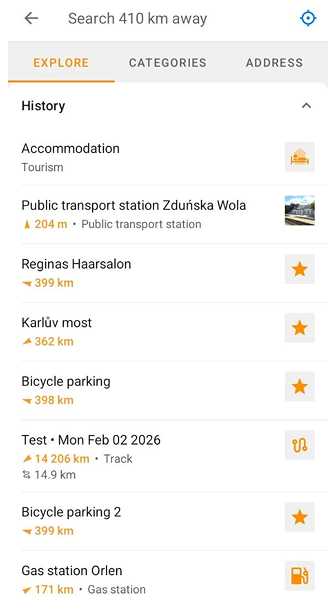
The History section of the Explore tab displays up to 25 most recent items. Tap the section title to collapse or expand it. Tap View all to open the full History screen.
If both Search history and Navigation history are turned off, the section displays the History is turned off card. Tap Open History settings to enable them.
Each field in the History list contains some of the information available to the application.
- An icon that identifies the type or category of the found object.
- The object name, location, address, or type query. For tracks, information about the distance, number of waypoints, and time is displayed.
Each field in the Search History list contains some of the information available to the application.
- An icon that identifies the type or category of the found object.
- The object name, location, address, or type query. For tracks, information about the distance, number of waypoints, and time is displayed.
- Distance from your current location to the point and direction by compass.
Sort and Filter
- Android
- iOS
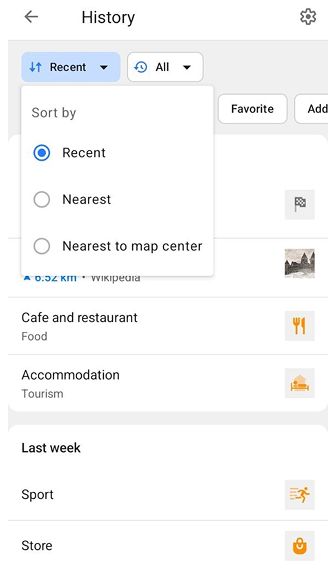
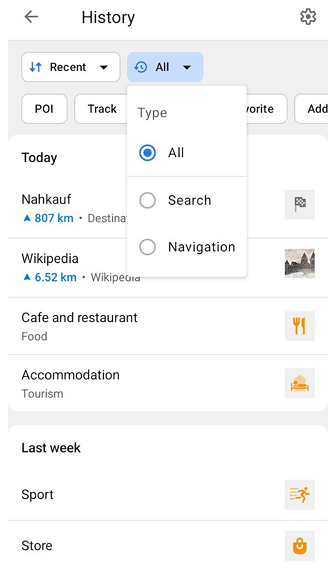
On the full History screen, you can sort and filter your history items using the following options:
-
Sort by:
- Recent — displays the most recently added items first. When this option is selected, items are grouped by time, such as Today, Yesterday, Last week, and earlier periods.
- Nearest — sorts items by their distance from your current location.
- Nearest to map center — sorts items by their distance from the current center of the map. When either of the distance-based sorting options is selected, the time-based groups are not displayed.
-
Type — filters history items by:
- All — displays all available history items.
- Search — displays items from your search history.
- Navigation — displays items from your navigation history.
If Search history or Navigation history is turned off in the History settings, the Type filter is not available.
-
Category filters — filter history items by category. The available category filters depend on the types of items available in your History. For example, you may see categories such as POI, Track, Location, Favorite, or Address. You can select several categories at once.
-
Settings — tap the gear icon in the upper-right corner to open the History settings, where you can enable or disable Search history, Navigation history, and Map markers history, back up history as a file, or clear all history.
- Recent Items. The most recent requests or locations are displayed at the top of the list. This allows quick access to recently used items.
- Chronological order. Items in the Search History list are arranged in chronological order, starting with the oldest or earliest entries and ending with the most recent or latest. Old items gradually move down the list as new entries are added, unless old items in the search history have been used, in which case they will be moved to the top of the list.
- The list is sorted by month.
Type of Objects
- Android
- iOS
The following types of objects get into the Search History list:
- Locations. This can be an address, business name, route number, coordinates, markers, points of interest, OSM notes, or places you tapped on the map.
- Tracks and Waypoints. The list includes tracks you created, recorded, or downloaded that you used in previous routes, and waypoints if you navigated to them separately.
- Favorites and Photos. Favorite points and photo notes you have opened.
- Destinations. Points you have navigated to.
The following types of objects get into the Search History list:
- Locations. This can be an address, business name, route number, coordinates, markers, points of interest, OSM notes, or places you tapped on the map.
- Tracks and Waypoints. The list includes tracks you created, recorded, or downloaded that you used in previous routes, and waypoints if you navigated to them separately.
Actions
In the Search History tool, you can delete unnecessary queries, all at once or by individual items. You can use History export. The Android app provides an additional action of sharing search items as a GPX file.
You can disable or enable the display of the entire search history. In this case, the queries are not deleted from the device. In Android, the switch is located at the top of the Delete screen and in the History settings, which you can open with the gear icon on the History screen. In iOS, it is located in Menu → Settings → OsmAnd Settings → History → Search History.
Delete
- Android
- iOS
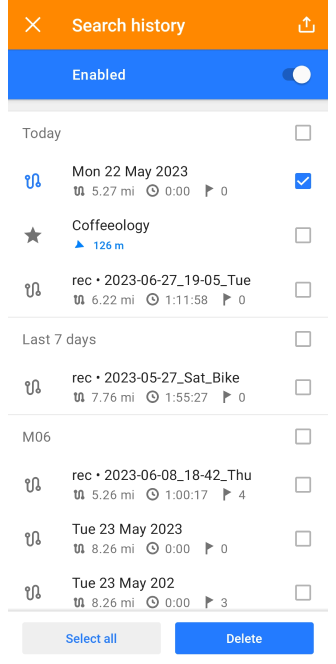
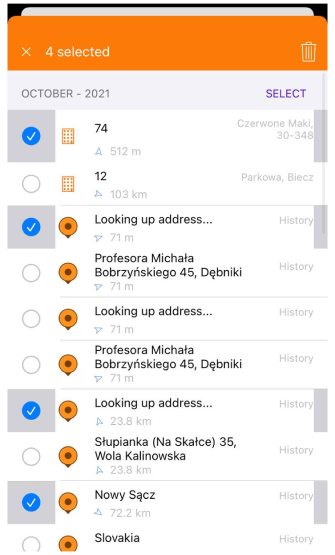
After using OsmAnd for a long time, the Search History list can become too long, so deleting search queries helps to clear the list. You can delete queries that are no longer relevant or that you no longer intend to use in the future, which makes it easier to search through the list, especially when you need to find specific search queries quickly.
You need to long tap any of the query items in the list to open the Delete screen.
- Select or deselect random items - tap the required item in the list.
- Select the period available for deleting, such as day, last 7 days, or month - check the box with the subheading in the list.
- You can delete the entire history at once by tapping the Select All button at the bottom of the screen.
- Menu → Settings → OsmAnd settings → History → Actions. This section contains the Clear all history (Android)/Delete all history (iOS) button.
Export and Share
- Android
- iOS
Go to: Menu → Settings → OsmAnd settings → History
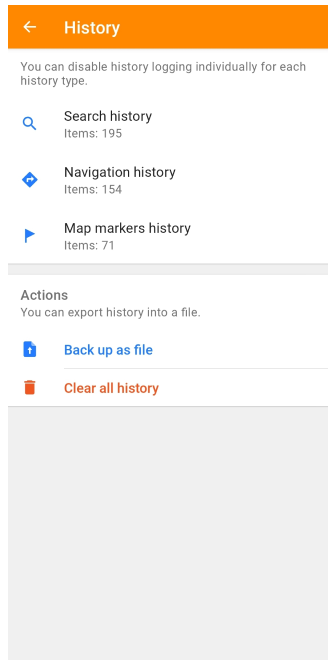
Go to: Menu → Settings → OsmAnd settings → History
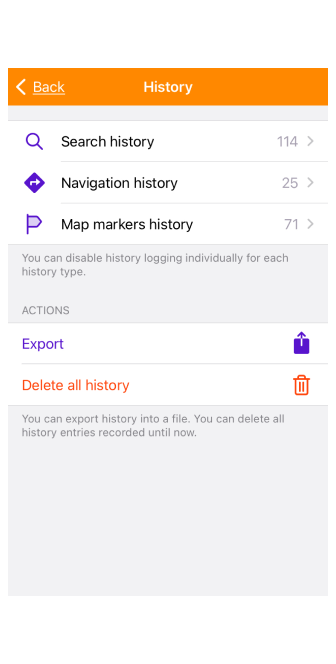
There are several available options to export the search history. All files are exported in .osf (OsmAnd settings File) format.
-
Menu → Settings → OsmAnd settings → History → Search history.
Export is available using the OsmAnd settings menu. For Android, following this path takes you to the delete screen, where Share history is available. In the case of iOS, you can select individual items or the entire history on the screen, and after tapping the Export button, go to Local Backup menu. -
Menu → Settings → OsmAnd settings → History → Actions → Back up as file (Android).
Menu → Settings → OsmAnd settings → History → Actions → Export (iOS).
Tapping these items takes you to the Import/Export (Android) or Local Backup (iOS) menu. Expand the My Places list and find Search History. All queries are exported in one file at once. -
Menu → Settings → Import/Export → Export to file (Android).
Menu → Settings → Local Backup → Back up as file (iOS).
You can read more details in the Import/Export article. -
OsmAnd Cloud
You can use the Cloud to back up your search history. In the Local Changes menu or Settings → Back up data → My Places → Search History.

Exporting items or the entire search history can be useful in the following cases:
- Backup. You can back up your search history to save the information before deleting it and restoring it if necessary.
- Transferring to another device. When you change devices, you can use the export function or the Cloud to transfer your search history to a new device without having to search and enter data again.
- Analyze and process data. You can export your search history for data analysis or use it in other applications.
- Share search history with other OsmAnd users.
Share (Android)
The steps to share search history items are similar to export, with the difference that you export the whole history at once as an osf file, while you can share individual selected files in gpx format.
On the delete screen, select the required items from the Search History list. In the upper-right corner of the screen, there is an icon indicating sharing. Select an available application or action in the list to share.